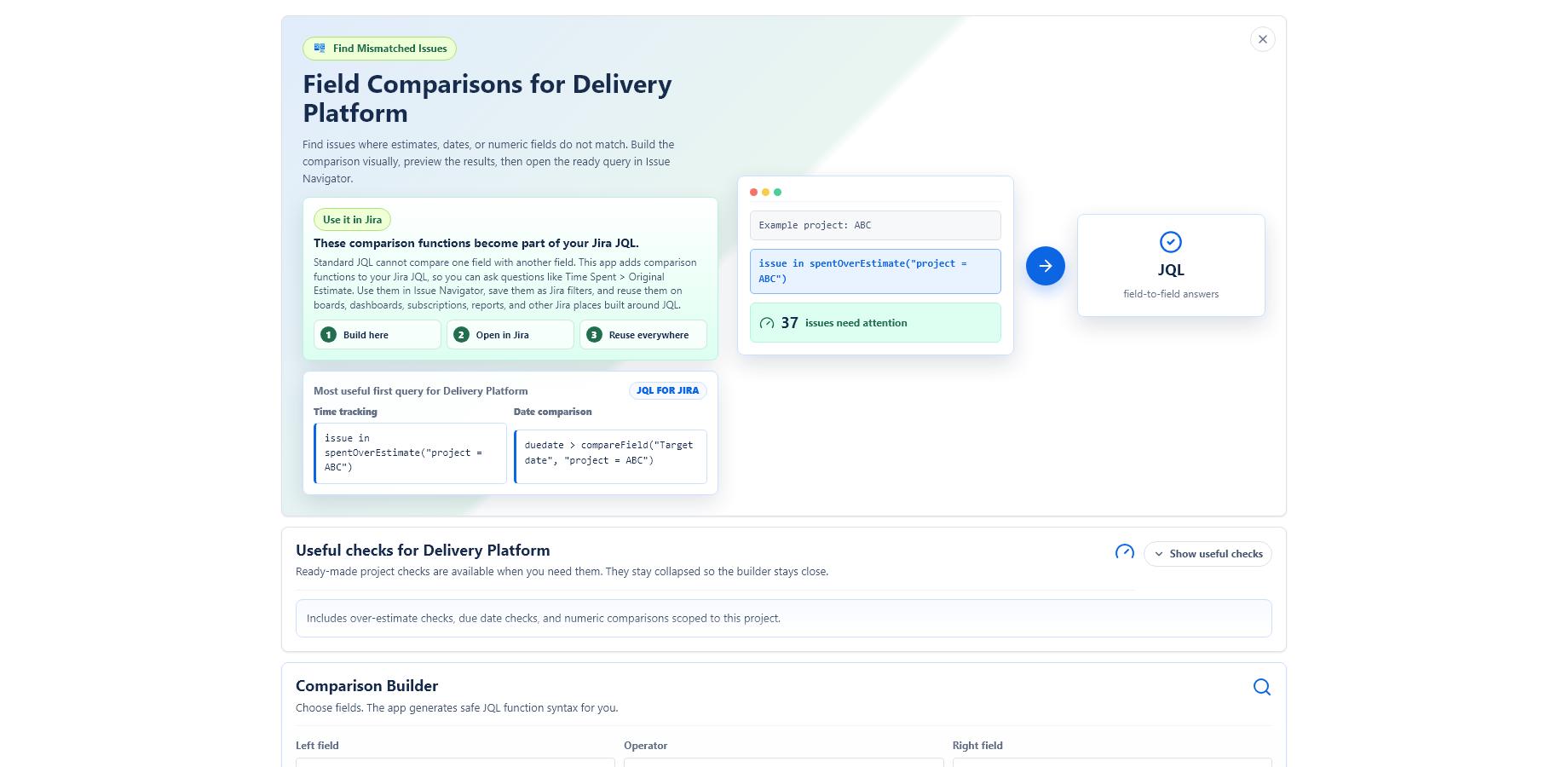
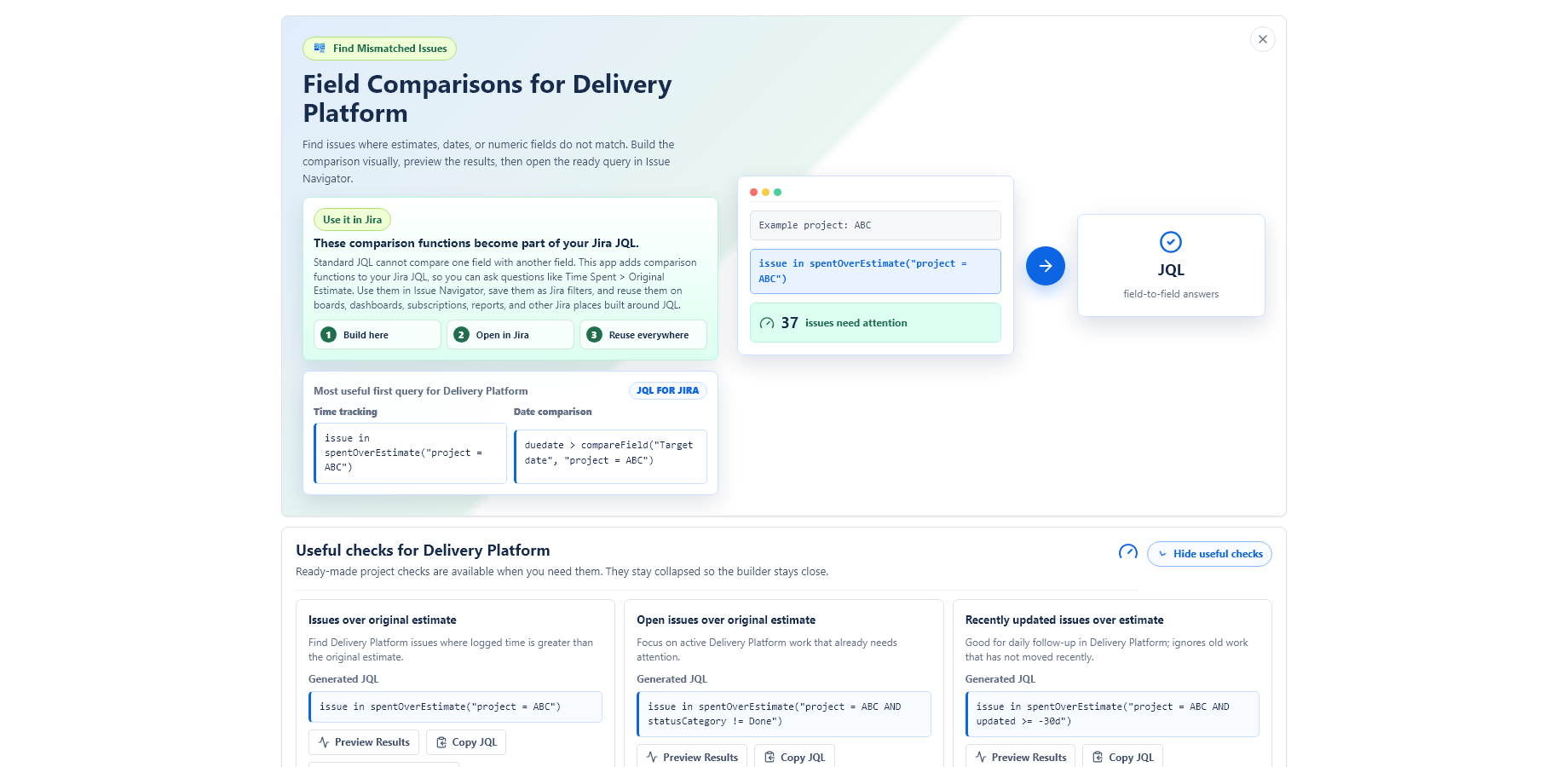
What the app adds to JQL
Standard Jira JQL is good at comparing a field to a fixed value, such as duedate < now(). It is not designed to compare one issue field with another issue field on the same issue.
JQL Compare Fields adds custom JQL functions for field-to-field comparisons:
spentOverEstimate(scopeJql?)returns issues where Time Spent is greater than Original Estimate.compareField(rightField, scopeJql?)compares the current left-side field with another field.compareFields(leftField, comparisonOperator, rightField, scopeJql?)returns issues where two named fields match the selected comparison.
Where you can use the JQL
After the app is installed, the custom functions can be used as part of Jira JQL. Typical places include:
- Issue Navigator searches,
- saved filters and shared filters,
- board filters, swimlanes and quick filters,
- dashboard gadgets that use a JQL filter,
- Jira reports based on saved filters,
- Jira automation components that accept JQL, such as lookup issues or JQL conditions.
Availability can still depend on how a specific Jira feature supports app-provided JQL functions, user permissions and Atlassian platform behavior.
Function reference
| Function | Use when | Returns |
|---|---|---|
spentOverEstimate(scopeJql?) | You want the common “time spent is greater than original estimate” check. | Issue set for issue in .... |
compareField(rightField, scopeJql?) | You want to write natural JQL with a Jira field on the left side. | A comparable date, number or duration value for the current issue. |
compareFields(leftField, comparisonOperator, rightField, scopeJql?) | You want a full comparison inside one function call. | Issue set for issue in .... |
spentOverEstimate(scopeJql?)
Finds issues where Jira Time Spent is greater than Jira Original Estimate. Durations are compared in seconds.
Syntax
issue in spentOverEstimate()
issue in spentOverEstimate("project = ABC")
issue in spentOverEstimate("project = ABC AND statusCategory != Done")
Parameters
| Parameter | Required | Description |
|---|---|---|
scopeJql | No | A JQL fragment used to limit candidate issues before comparison. Use it to keep searches focused and performant. |
Use cases
- board quick filter for open work that is already over estimate,
- dashboard gadget showing recently updated over-estimate issues,
- automation rule that comments, labels or notifies when issues cross estimate thresholds.
compareField(rightField, scopeJql?)
Compares the Jira field on the left side of the JQL expression with another field on the same issue. Use this when you want JQL that reads like a normal field comparison.
Syntax
timespent > compareField("timeoriginalestimate")
"Time Spent" > compareField("Original Estimate")
duedate > compareField("Target date", "project = ABC")
"Story Points" > compareField("Planned Points", "project = ABC")
Parameters
| Parameter | Required | Description |
|---|---|---|
rightField | Yes | The field to compare against. Use a Jira field name, system field name or field ID such as customfield_10042. |
scopeJql | No | A JQL fragment used to narrow candidate issues before comparison. |
The left-side field and rightField should be compatible field types, such as date-to-date, number-to-number or duration-to-duration.
compareFields(leftField, comparisonOperator, rightField, scopeJql?)
Compares two named fields and returns the issues that match. Use it when you want the whole comparison inside an issue in ... function call.
Syntax
issue in compareFields("Story Points", ">", "Planned Points")
issue in compareFields("Story Points", ">", "Planned Points", "project = ABC")
issue in compareFields("duedate", ">", "Target date", "project = ABC AND statusCategory != Done")
issue in compareFields("timespent", ">", "timeoriginalestimate", "project = ABC")
Parameters
| Parameter | Required | Description |
|---|---|---|
leftField | Yes | The field on the left side of the comparison. Use field name, system field name or field ID. |
comparisonOperator | Yes | One of <, <=, >, >=, = or !=. |
rightField | Yes | The field on the right side of the comparison. |
scopeJql | No | A JQL fragment used to narrow candidate issues before comparison. |
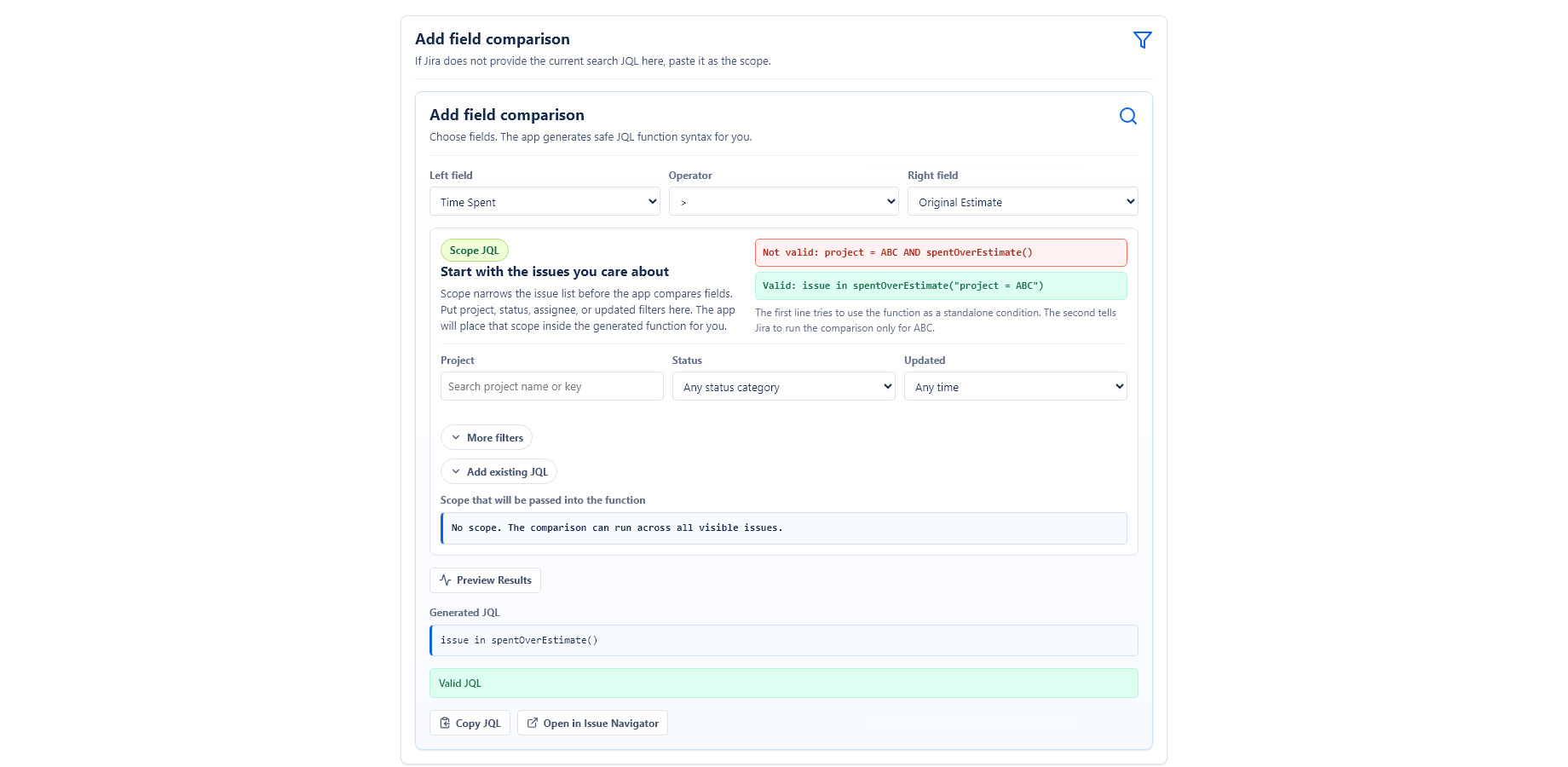
Scope JQL
Scope JQL limits the candidate issues before the app compares field values. This is important for performance and for making results easier to understand.
project = ABC
project = ABC AND statusCategory != Done
project = ABC AND updated >= -30d
project = ABC AND assignee = currentUser()
project = ABC AND resolution is EMPTY
For large Jira sites, start with a project or another narrow scope. Avoid broad cross-site comparisons unless you have a specific reason.
Supported fields and operators
Supported operators are <, <=, >, >=, = and !=.
Supported fields include:
- date fields,
- date-time fields,
- number fields,
- Jira time tracking duration fields, including Time Spent, Original Estimate, Remaining Estimate, Aggregate Time Spent and Aggregate Original Estimate,
- custom fields with supported Jira schema types.
Both compared fields must have values. Issues with an empty left or right field do not match, including when using !=.
Builder and quick checks
The app includes UI helpers so users do not have to memorize function syntax.
- Project page: open Project - Apps - Field Comparisons for project-scoped quick checks.
- Global page: open Apps - JQL Compare Fields for cross-project examples and scope controls.
- Issue Navigator action: use Apps - Add field comparison when you are already building a Jira search.
- Admin page: configure default quick checks and refresh field metadata.
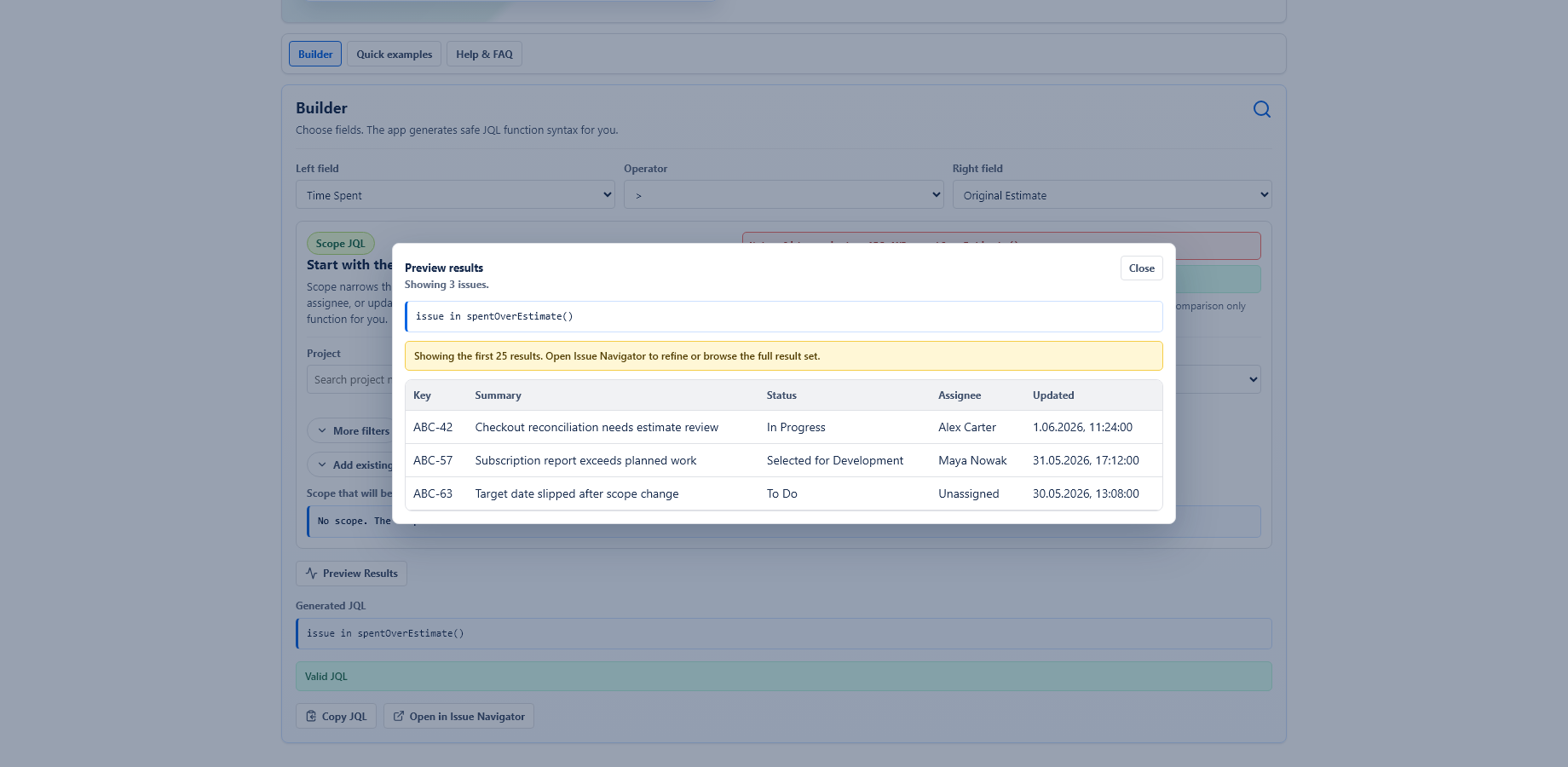
These screens generate JQL, preview results and help users choose fields. The generated JQL can then be reused in Jira features that accept normal JQL.
Limits
The app stops comparisons that are too broad for reliable execution. Current product documentation describes scanning up to 10,000 candidate issues and returning up to 1,000 matching issues from a comparison function.
Preview is intended as a quick check. Use Issue Navigator, saved filters or Jira reports for normal browsing and operational use.
Troubleshooting
A field is ambiguous
Use the Jira field ID, for example customfield_10042. Jira admins can find custom field IDs in field settings or in the custom field configuration URL.
No issues appear
Check that both compared fields are filled on the issues you expect to match. Empty values do not match.
A search is too broad
Add a project, status, assignee, updated date, component, version, sprint, epic or another JQL scope.
A field recently changed
Ask a Jira admin to refresh field metadata from the app admin page.
A Jira feature does not accept the query
Confirm that the feature supports app-provided JQL functions and that the current user has access to the fields and issues used by the query.